
Configuring Continuous Integration
Currently, only supported by iOS Based FM SDK Apps.
In the world of offline applications, especially of the FM variety, we reach a point where a developer would like to release a new version of their app. The version may include layout changes, new fm scripts, or even new .fmp12 files. Whatever the change is and how ever often these changes need to be deployed to the end users' devices, this task can become very challenging and time consuming. In an effort to curtail these challenges, Haploo Sync offers a background queued method for updating 1000s of devices. (Really no technical limit to the number of devices that can be updated, Dropbox's daily download bandwidth would be the only real limitation.)
In version 1.x.x.x of Haploo Sync, developers / customers will use their own dropbox accounts to host the cloud repositories for their app versioning. In Haploo version 2.x.x.x, our cloud portal will manage and host this feature for you to avoid configuration common mistakes.
Step 1. Configure a dropbox app via your dropbox or your client's dropbox account.
-
Login to dropbox using an internet browser. Login with the account that will host this repository and container data (if used) for the app that you're going to be configuring.
-
Once you have logged in to your account, go to https://www.dropbox.com/developers/apps
-
Find the button to create app.
-
Use Dropbox API as Dropbox for Business API has not been tested ( Use at your own risk )
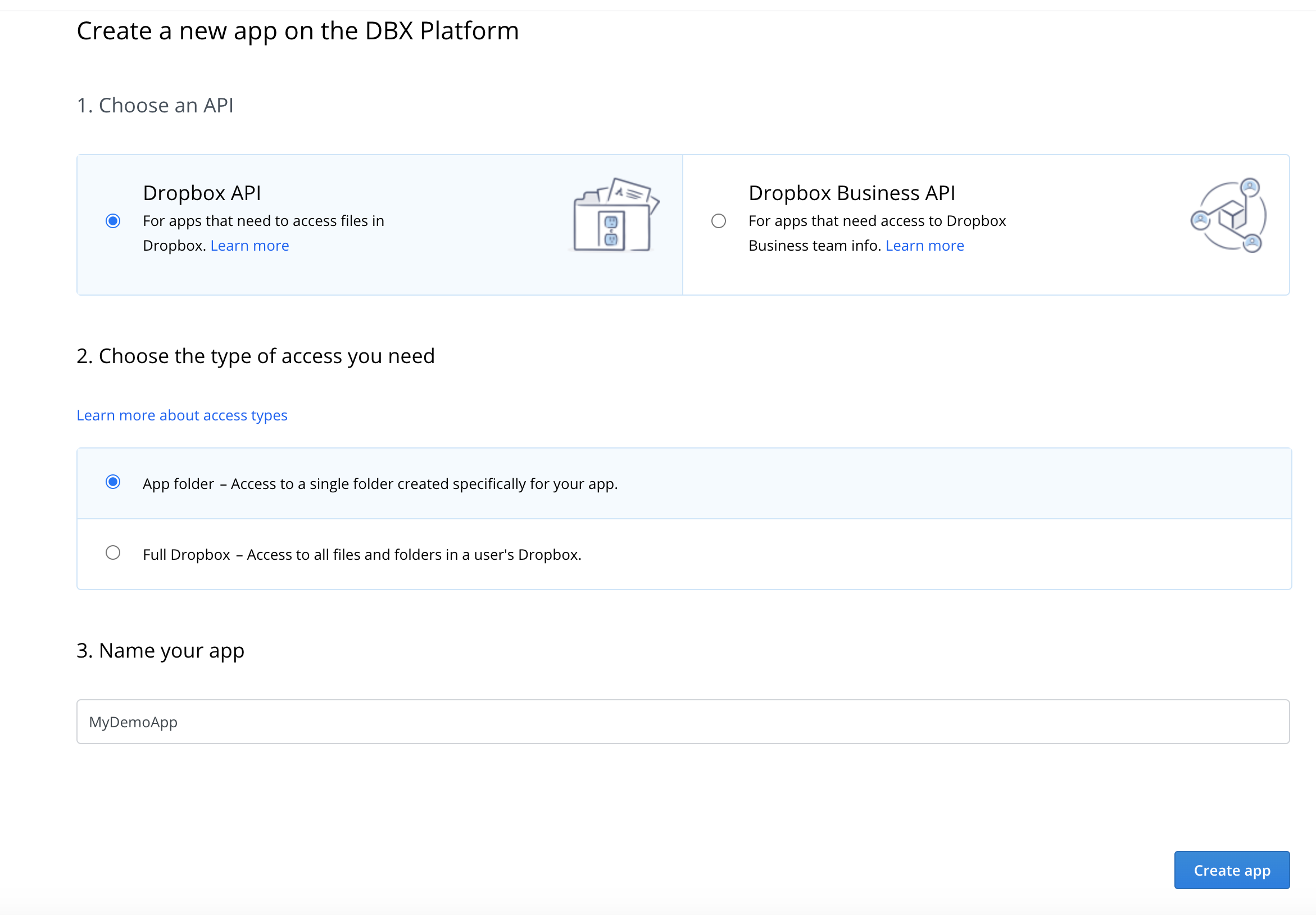 Access Type
Please always use App Folder. This will create a sandboxed area inside the dropbox account that is exposed to the API Key and API Secret that dropbox will issue you. This is the best security practice.
Naming Your Drobox AppThis app name must be globally unique accross the Dropbox DBX Platform. Don't worry you never have to expose your dropbox app's name to their marketplace.
-
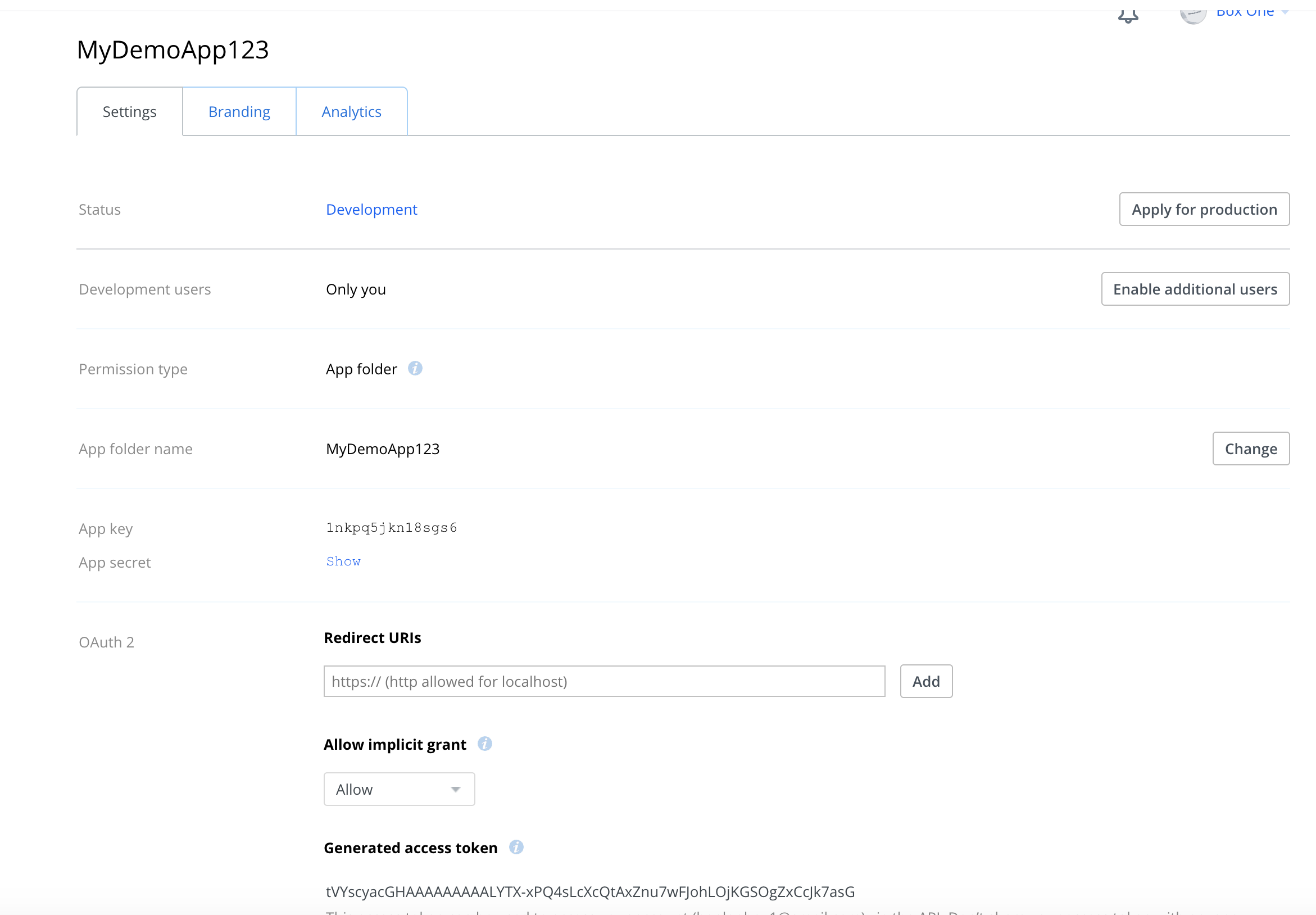
When ready, click Create App. Now, generate the API Credential on the next page that loads. This token is the OAuth 2 token. Click the Generate Button to expose the key.
-
Save this token in a safe place. We will be using it later when we configure the HaplooRegister function inside your FM App file.
-
Now navigate back to the normal dropbox login page or if your still logged in, the normal folder view of your dropbox account. In your dropbox root folder, you should see a new folder that is automatically created for you named : Apps. Inside this folder will be a new folder with your dropbox app name.
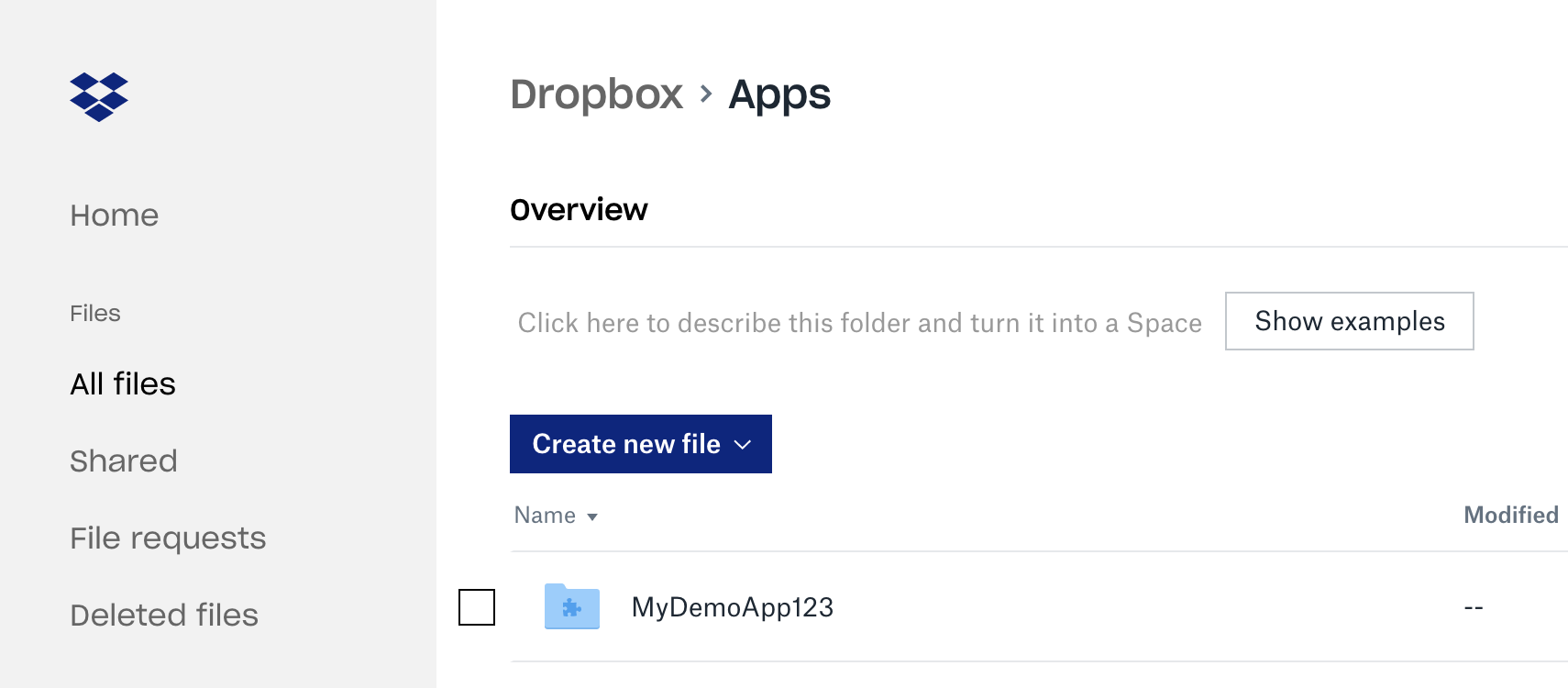 Dropbox Pathing
When referencing dropbox paths, your API Root folder will be inside the named app folder. In the photo above, MyDemoApp123 is the root folder. If you where to create a deploy folder to save upgrades to the path would look like this -> "/deploy/version.json". This folder and file would be placed within the MyDemoApp123 folder as this folder does not need to referenced in API Calls.
Step 2. Build your deployment / CI folder and Version.json file for your dropbox app.
- We typically create a subdirectory named "Deploy", but you can make any filing structure that makes sense to you. If you have many tenants that use your app, you may decide to make a Deploy / TenantName/ folders, or if you have a shared UI file you may make a folder path named Deploy / UI /.
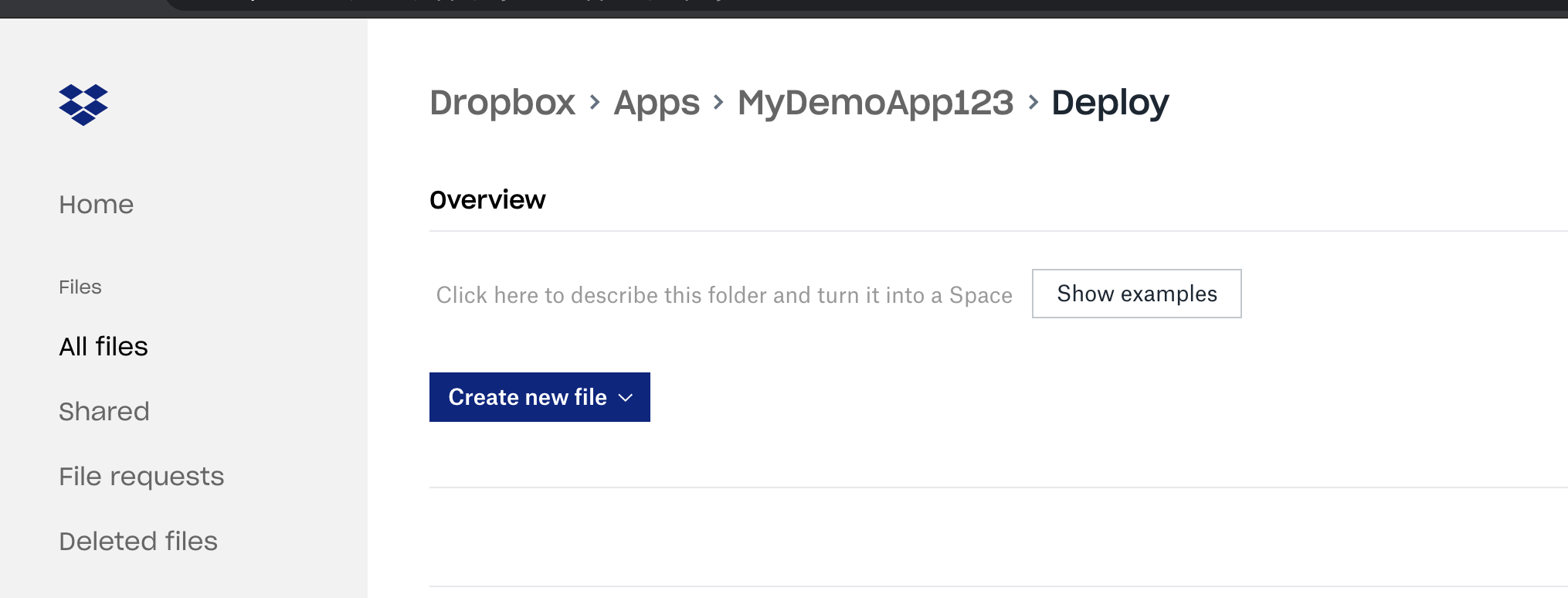
- For each file or tenant that you'd like to maintain you will need to supply a version.json file. This files purpose is to provide your deployed app with the current version of your app. If the version is newer or does not match the deployed version, this mismatch condition will trigger the content download for your app.
- The version.json file represents each file in your solution that you'd like to update. The first three keys are required. The others will be used at future date and do not need to be included at this time. The filename is what the unzipped file will be named. If you only have one file, please still maintain the JSON Array, just leave it has one item. When ever you're ready to release a new version of your app, upload your app's file first, then update the Version.json file's Version key. Updating this key prematurely can cause a corrupt download.
{
"SolutionFiles":[
 {
   "Filename":"UI.fmp12", //Requried
   "DownloadPath":"/DEPLOY/DATA.zip", //Requried
   "Version":"v8r41", //Requried
   "Required":"No",
   "Date":"12/9/2019",
   "Hash":"ZOKOFAFWEFWF",
   "Chunked":"NO"
 },
 {
   "Filename":"DATA.fmp12",
   "DownloadPath":"/DEPLOY/DATA.zip",
   "Version":"1.3",
   "Required":"No",
   "Date":"12/1/2019",
   "Hash":"ZOKOFAFWEFWF",
   "Chunked":"NO"
 }]
}
- When you are finished preparing your dropbox app directory for CI, your folder will look similar to this:
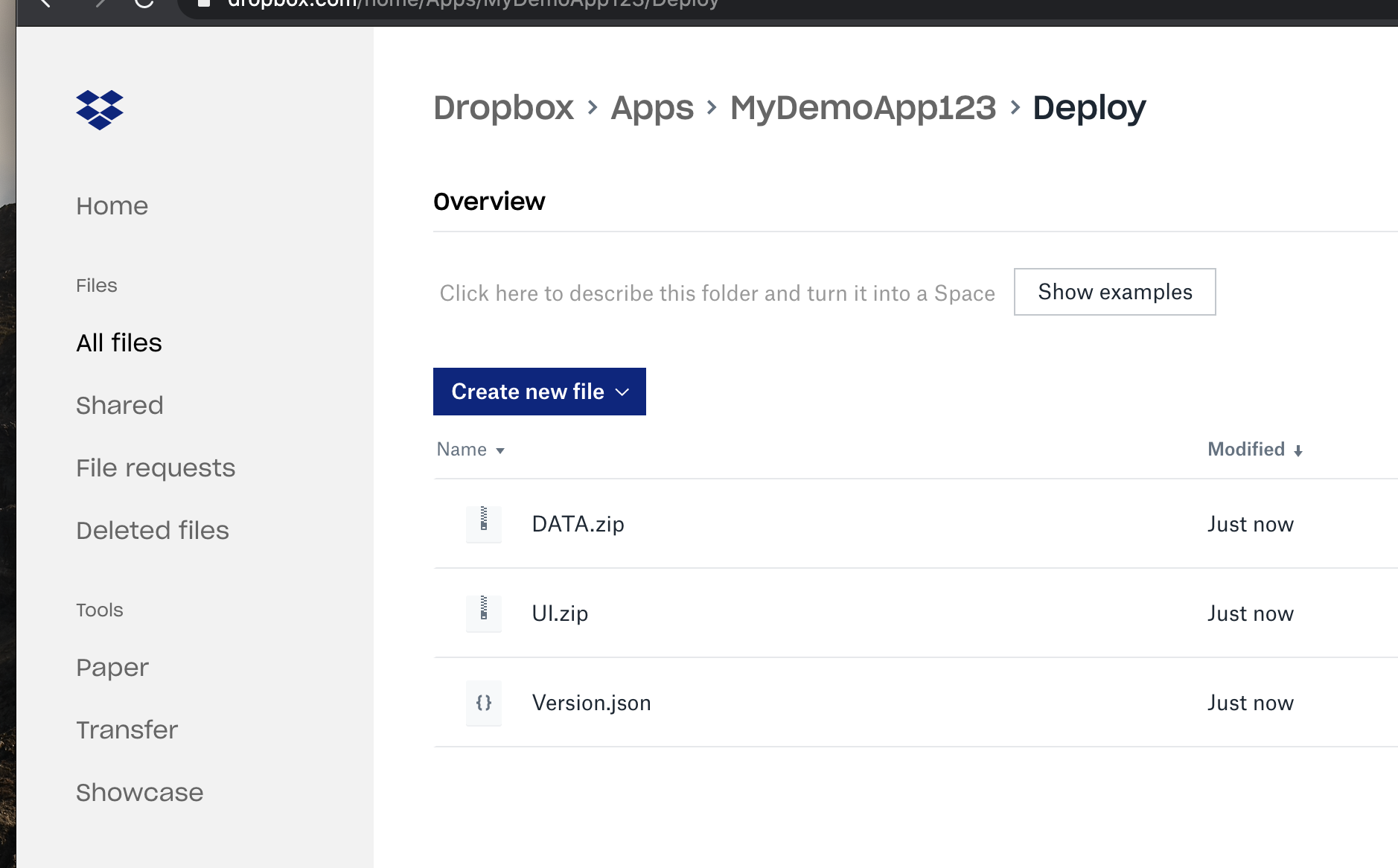
Hint. The Haploo CI feature is not limited to upgrades. You should design a prelaunch solution that installs your latest FM App version from your Dropbox CI folder for new device installs. This will make your life easier and keep onboarding process consistent with your upgrades / releases.
In many situtations, hosting a preseeded data file or app will be very generous to your end users. By pre-syncing an entire solution, then uploading it along with its SQLITE.db cache file, while prevent any endusers who install your app the grief of waiting for all the data to arrive. Even though Haploo sync is a background queue sync engine, time is still a requirement to sync a device to the current UTC time. If the current deployment file is updated and the sqlite caches are included, your users will have virtually zero inital sync time. They can begin using your app immediately without delay.
Step 3. Configure the HaplooRegister Function
Once your dropbox enviroment is prepared, please open your FMP solution file that contains your startup script, or the On First Window Open Script. This is where we normally place our HaplooRegister custom plugin function.
- Inside the function, you will add two additional JSON Keys. First key is the OAuth2 Dropbox token that was generated in step 1.5 from above. Second key is the path for your Version.json file inside your dropbox app folder.
[".Dropbox_Token"   ; "tVYscyaEHtlmQSAAFEFWEFWE#223223qqv"    ; JSONString];
[".CI_Path"         ; "/Deploy/Version.json"          ; JSONString];
Step 4. Add a FM Script named: "HaplooExit"
Lastly, you'll need to add a script to your main FM solution file named: "HaplooExit". Inside this script you'll need to add an "Exit Application" script step and enable full access execution. Some FM GO SDK apps never close or shutdown, in order for the upgrade process to happen cleanly, we must forcely close down the open FMP files to allow the new version to load into memory. Haploo framework will call this script when its time to swap out existing files with the new files. You may even include a Show Custom Dialog script step to alert your end users that a reboot of the app is going to occur.

Your're Haploo Sync Continouous Integration / Deployment enviroment is now configured. You can now update 1000s of devices at the drop of a file as a background download to your FM App.